










Welcome to the Ocado on the Go application
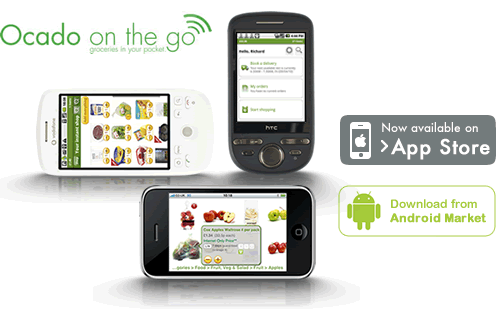
Ocado on the Go is the most convenient way to shop for groceries on the move. Use your iPhone or iPod touch to browse through thousands of household groceries, then place your order for delivery in a handy one-hour time slot.
Features:- An entire supermarket at your fingertips. Shop for everything from delicious food and drink to homeware, books, toys and much more.
- Shop for groceries on the move. Place a brand new order or just add an item you’ve forgotten to your next order.
- Works in complete harmony with Ocado.com. Seamless syncing means you can start an order on one and complete it on the other.
- Get your next order started in a flash. Use Your Instant Shop to create a typical order for you, based on your previous deliveries.
- Shop even if you’re offline. Our catalogue of over 18,000 products is stored on your phone, so you can keep shopping even if you go through a tunnel. As soon as your Internet connection returns, your order will update automatically.
- Same day ordering. Place an order for same day delivery while commuting to work. (Not available in all areas.)
- Shop from your kitchen (or wherever you like). Check your cupboards and fridge as you shop, so you’ll never run out of eggs or buy a duplicate jar of mixed herbs by mistake.
Using this application, many of the shopping activities on the Ocado webshop can now be performed from your iPhone.
However unlike many iPhone applications that can only be used when you are connected to the internet, Ocado on the Go allows you to work online or offline. So now you can browse our product catalogue, put together your order or even edit an existing order whilst you are on the go.
- New to Ocado on the Go? Read more...
- 1. Home Screen
In the centre of the screen are the three main buttons:
- Book a delivery
If you have already booked a delivery slot, this button displays it, otherwise it displays your next available delivery slot. Clicking on the button take you into the delivery slot booking wizard, in which you can book a new slot or change an existing one – see Book a delivery section for more details. - My orders
This button displays the number of pending (i.e. not yet delivered) orders you have. Clicking on it takes you into your order history – see Order management section for more details. c. Start shopping Clicking this button takes you into the main shopping area of the application – see Shopping section for more details
At the bottom of the screen there is a tab bar containing the following buttons, which is visible on every screen:
- Home
This button takes you back to the Home screen - Shop
This button takes you to shopping area – see Shopping section for more details - Basket
This button takes you to a view of your current basket – see Basket section for more details - Checkout
This button takes you delivery slot booking and checkout wizard – see Checkout section for more details
In the top right hand corner there is the online indicator. This displays blue concentric circles if you are currently connected to Ocado.
In the top left corner there is an information button that displays the About screen. This contains a link to our terms and conditions and other information that may be useful for our Call Centre should you have any problems
- Book a delivery
- 2. Shopping
This screen contains the following five buttons:
- Browse the shop
- Navigation
This takes you into the hierarchical product catalogue. You simply drill down the categories until you get to products you want to view.
To move back up the hierarchy simply swipe left or click on the button on the navigation bar.
You can scroll up and down the list of products. If there are more than 25 products in the current category, then a Show next 25 items button will be displayed at the bottom of the list
- Adding items to your basket
Clicking on the Add button will add one of that item you your basket. Items already in you basket will be displayed and clicking on the minus button will remove one of those items from your basket - Back of pack
Clicking on the image takes you to the back of pack information for that product. - Items on offer
Items that are part of a group of related items on offer will display and Offer button, clicking on which will take you to a list of the related items - Images
When you first enter the screen of items you have not been to before the images will not be displayed initially. After a little while, assuming you are online, the images will begin to appear as they are downloaded from our webshop. Once the images have been downloaded they are saved on the iPhone so next time you view that item the image will be displayed immediately, even if you are offline - Basket total
The number of items in your basket and your basket total are displayed in the title bar. If you are offline the basket total is an approximate value that does not take account of multibuy discounts and other promotions which are calculated by the webshop - Zoom buttons
The plus and minus buttons in the navigation bar allow you to increase and decrease the amount of information for each item that is displayed, which in turn affects how many items you can see on the screen at any one time - Synchronisation
As you add and remove items from your basket, you will see a little red indicator flash up on the basket button on the tab bar and also the online indicator will change to the synchronising indicator. These indicate that the application is sending the changes to the webshop to keep your iPhone basket in sync with your webshop basket. If you are offline, this synchronisation will occur when you are next online.
Please note: The iPhone only allows one active application. So if you exit the application with unsynchronised items, these items will not be synchronised until you next start the application whilst online. To remind you of this, the Ocado on the Go icon on the iPhone home screen will display the number of unsynchronised items in your basket
- Search for a product
- Online search
Online search uses the same search engine as the webshop and is thus much smarter - Offline search
Offline search just looks for items containing the word or phrase that you enter in its description - Products you’ve bought before
Displays a list of the products you have bought before - Recommended to you
Displays a list of recommended products based on your previous shopping choices - Instant order
This displays a suggested order based on your previous order history. You can select individual items from this suggested order or else add the complete order to your basket
- 3. Basket
This view displays the items in your basket, either as images or as text.
Clicking on an image or line of text displays a callout. Clicking on the plus or minus buttons in the callout adds or removes one of the selected item from your basket. Clicking on the green arrow button takes you to the back of pack information for that item
- 4. Book a delivery
The delivery slot wizard takes you through the following steps:
- Selecting your delivery address, unless you only have one in which case this step is skipped
- Selecting the day on which you want your delivery. The calendar shows days on which slots are available in dark green
- Selecting the delivery slot. You can scroll or click on the index to jump to the part of the day you are interested in. You can swipe left and right to move to adjacent days
- Confirming your chosen delivery slot requires you to enter your password or your four digit PIN
- If the value of your basket exceeds the minimum basket value then you can proceed with checkout
- 5. Checkout
If you have not already booked a delivery slot you will first be taken through the steps described above
If you wish to change your delivery slot then simply click on the Change Slot button
Once you are happy with your delivery slot, click on Retrieve Payment Details. You will once again be prompted for your password or four digit PIN
Your order total and the last four digits of your payment card will be displayed
To place your order click on the Confirm & Place Order button. Alternatively you can continue shopping by simply clicking on one of the icons on the tab bar.
- 6. Order Management
- Viewing past orders
Order are split into pending orders that have not yet been delivered and previous orders. Use the buttons on the navigation bar to switch between these groups of orders - Editing an order
A pending order remains editable up until a cut-off time. You can edit an order by clicking on the Edit Order button. If you have items in your basket, these will be saved and the contents of your basket will be replaced by the order you wish to edit. Once you have checked out your modified order (or abandoned the changes by clicking on the Cancel Edit button in the basket view), the previous contents of your basket will be restored - Shopping from an order
Whilst viewing an order, you can click on the Shop from items button to see list of the order items that you can shop from. - Rebooking an order
Whilst viewing an order, you can click on the Order again button to rebook your complete order - Cancelling and order
An editable order can be cancelled by clicking on the Cancel order button
- Viewing past orders
- 7. Unsupported features
There are a number of features on the webshop which are currently not supported by the Ocado on the Go application, including:
- Initial registration with Ocado
- Entering vouchers during checkout
- Access to shopping lists
- Searching for multiple items at a time
- Access to content such as recipes
- Entering or amending payment details
- Adding, modifying or removing a delivery address
- 8. Miscellaneous
- Changing your user account
To shop with a different user account click on the Not you button on the home screen which will take you through the registration process again - What to do if your iPhone is lost or stolen
Should your iPhone be lost or stolen, there is limited risk assuming your password and/ or PIN are not compromised. - Uninstalling
You uninstall the application as you would any other iPhone application. Simply hold an icon on the home screen until the icons stark to wobble and then click on the X in the corner of the Ocado on the Go icon
- Changing your user account